
You can use Sage 100 Payroll Link to transfer absence transactions from Sage 100 Payroll to Sage HRMS Time Off.
Before you start
- Complete all setup steps for Sage 100 Payroll Link.
- Enter all necessary payroll information in the Sage 100 Payroll Setup window for the employees whose time off is to be transferred.
Data to be transferred
During the Update Check Register process in Sage 100 Payroll, the system creates a temporary file to store absence-related information for employees. Information is only stored for earnings that are mapped to an absence reason code in Time Off and that have an earnings type selected when you set up the employer.
When you use the Time Off Transfer process, the information stored in the Payroll file is used to create absence transactions in Time Off.
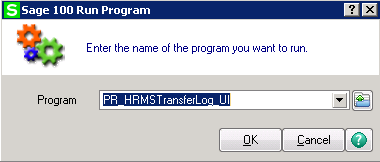
Tip: To view the absence-related file in Sage 100 Payroll, go to the menu in Sage 100, select , enter PR_HRMSTransferLog_UI for Program, and then click . View...
Fields transferred
The following table lists the fields from Sage 100 that are used to create the Time Off fields for each absence.
|
Sage 100 Fields (Source) |
Time Off Fields |
|---|---|
|
Time Off Date in Payroll Data Entry. |
Absence Start Date |
|
Day of Time Off Date determined from the Date Worked. |
Absence Day of Week Code |
|
Earnings code in Sage 100 Payroll that maps to the Time Off. absence reason code. |
Absence Reason Code |
|
Time Off Hours in Payroll Data Entry. |
Absence Hours |
|
Earnings Description for the earnings code used to create the absence transaction. |
Absence Comment |
To transfer time off data from Sage 100 Payroll to Time Off:
- In Sage 100 Payroll Link, select the Sage HRMS Employer whose employee time off information you want to transfer.
- Select . The date of the last transfer is displayed at the bottom of the window.
- In the Report Options section, select the Audit report check box.
- To check the Time Off transactions before transferring the data:
- Clear the Transfer Time Off check box.
- Click .
- The Time Off Audit report opens with a list of the time off transactions queued to transfer. Review this information and make any necessary corrections in Sage 100.
- To perform the transfer:
- Select the Transfer Time Off check box.
- Click .
- A message informs you when the transfer is complete. Click .
- Review the Time Off Audit report after the transfer is complete.
Tip: To view the absence transactions in Sage HRMS Time Off, select , select an employee, click , and then click the tab.